Enabling PandaMCP
PandaMCP turns PanDA Server’s REST APIs into self-describing MCP (Model Context Protocol) tools. This allows AI agents to directly query and interact with PanDA, enabling controlled access to jobs, tasks, and system configurations. Beyond basic diagnostics and troubleshooting, it provides machine-interpretable interfaces essential for advanced automation, intelligent workflow orchestration, and proactive system optimization driven by AI decisions.
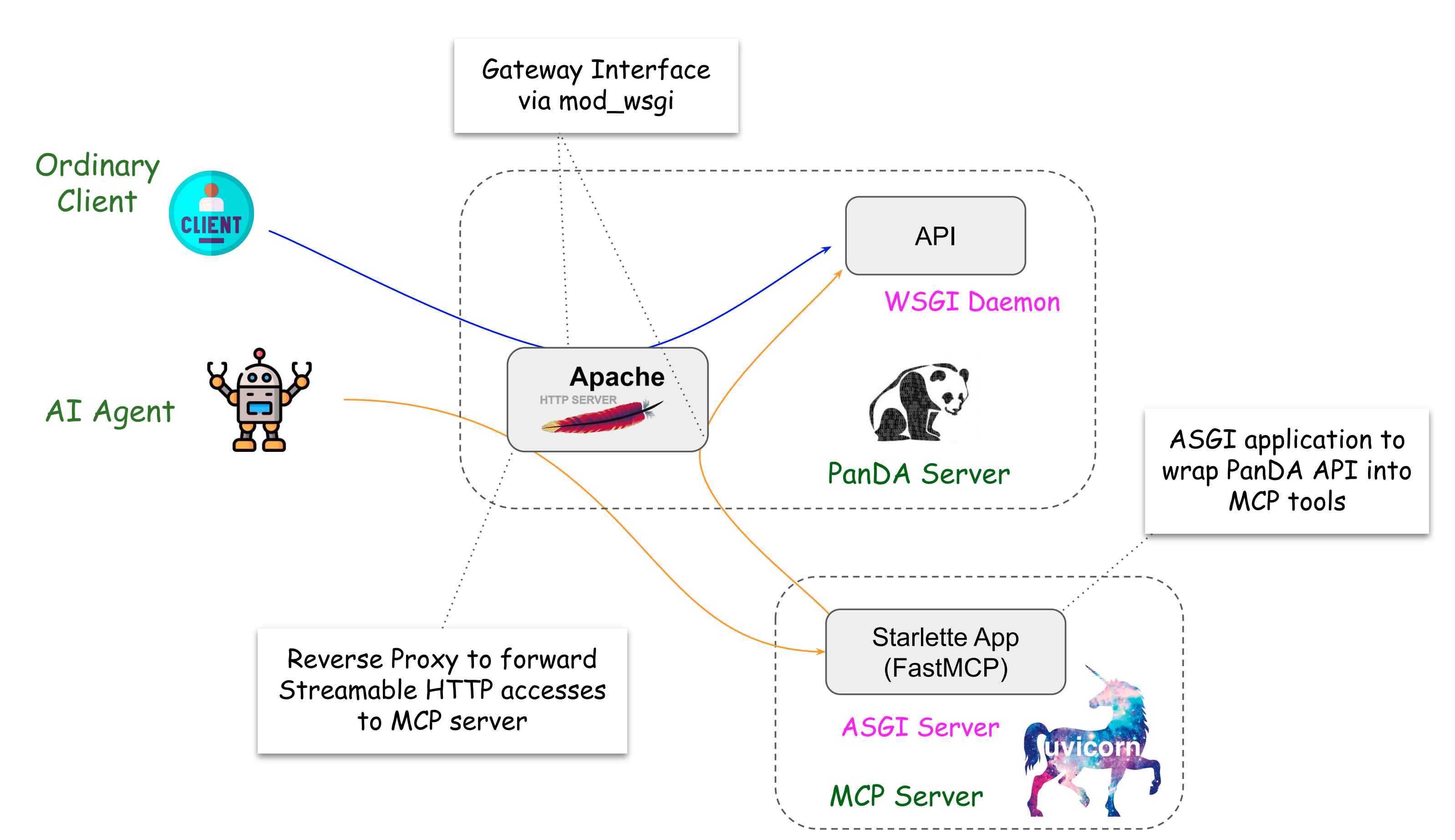
The architecture of PandaMCP is shown in the figure above. The PanDA Server exposes its REST APIs through WSGI interface to ordinary clients such as end-users, Pilots, and Harvester. Requests from AI agents are forwarded to a MCP server, which translates them into REST API calls to the PanDA Server and returns the results. The MCP server is based on FastMCP and runs as an ASGI application through Uvicorn. This setup mainly comes from the fact that most of MCP servers are implemented as ASGI applications, while the PanDA Server is a WSGI application.
Authentication and Authorization in PandaMCP
FastMCP offers bearer token authentication and supports server compositions, consolidating multiple FastMCP servers into a unified main server. However, only the main server can define an authentication provider, which means that this setup supports only one authentication provider. To accommodate multiple authentication providers, PandaMCP delegates authentication and authorization to the PanDA Server.
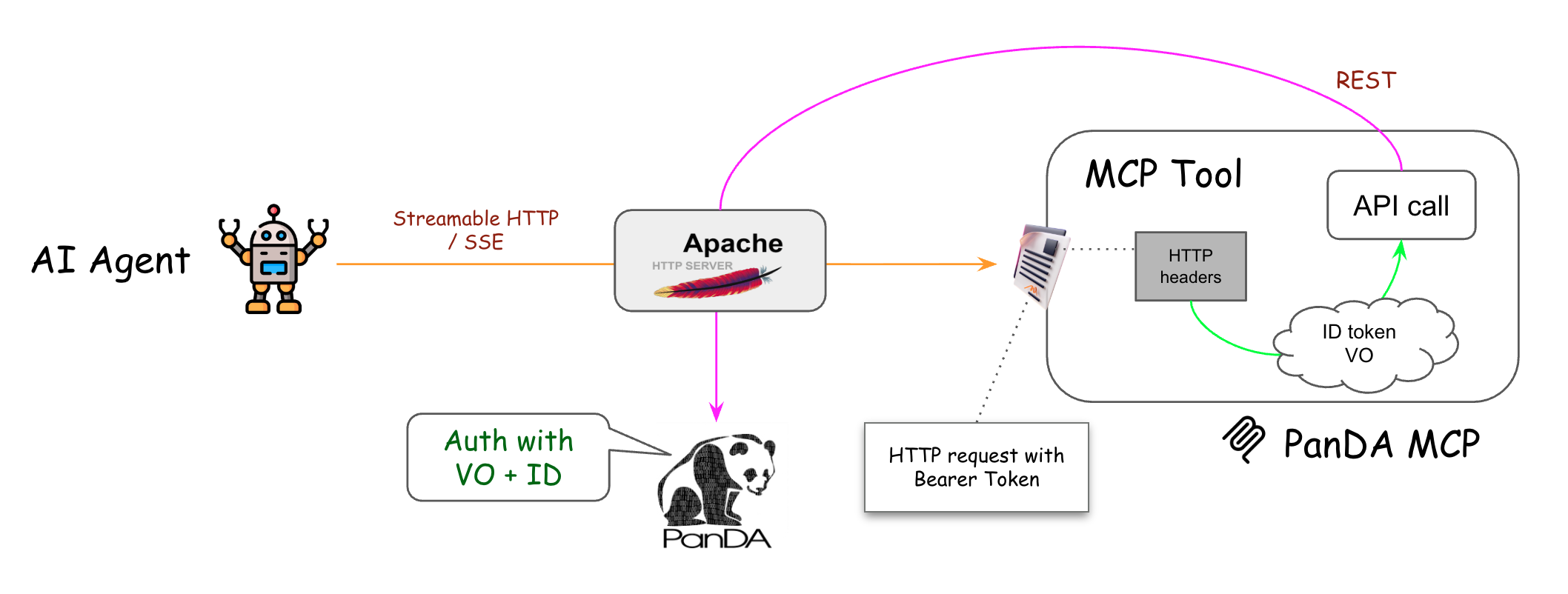
The figure above shows how authentication and authorization work in PandaMCP.
When an AI agent sends a request to the MCP server through the PanDA Server, the HTTP header should contain Authorization and Origin fields. E.g.,
GET /mcp/blah HTTP/1.1
...
Authorization: Bearer <ID token>
Origin: <VO>
where <ID token> is an ID token issued by an identity provider trusted by the PanDA Server, and <VO> is the virtual organization name,
which is typically the same value set via PANDA_AUTH_VO when using panda-client.
When the request comes in, the PanDA Server forwards it to the MCP server without modification.
The MCP server then extracts these fields from the HTTP header and includes them in the REST API call back to the PanDA Server.
The PanDA Server finally validates the ID token and checks whether the user is authorized to access the requested resource.
Enabling PandaMCP in Existing PanDA Server
To enable PandaMCP in PanDA Server, you need to install uvicorn and fastmcp packages.
/opt/panda/bin/pip install panda-server[mcp]
or
/opt/panda/bin/pip install uvicorn fastmcp
Then, you need to add the following section in panda_server.cfg:
[mcp]
# transport protocol for MCP server, should be streamable-http (http) or sse
transport = http

# the list of API endpoints to expose via MCP
endpoint_list_file = /opt/panda/etc/panda/panda_mcp_endpoints.json

# SSL settings (uncomment to enable SSL)
# ssl_keyfile = /path/to/ssl_keyfile.pem
# ssl_certfile = /path/to/ssl_certfile.pem
Note that SSL setting is required to enable SSL in the MCP server.
The file panda_mcp_endpoints.json contains the list of API endpoints to be exposed via MCP. It is a JSON file with the following format:
{
    "system": [
        "is_alive",
        "endpoint_path2",
        ...
    ],
    "API_module2": [
        "endpoint_path3",
        "endpoint_path4",
        ...
    ],
    ...
}
All API endpoints are described on the API documentation page.
Make sure PANDA_SERVER_CONF_PORT_MCP is defined and HOME is defined without ~ in /etc/sysconfig/panda_server_env, e.g.,
# Port number for MCP server
PANDA_SERVER_CONF_PORT_MCP=25888

# Home directory
HOME=/home/atlpan
httpd.conf needs to be configured to forward requests from AI agents to the MCP server:
ProxyPass /mcp/ http://127.0.0.1:${PANDA_SERVER_CONF_PORT_MCP}/mcp/
ProxyPass /messages/ http://127.0.0.1:${PANDA_SERVER_CONF_PORT_MCP}/messages/
ProxyPassReverse /mcp/ http://127.0.0.1:${PANDA_SERVER_CONF_PORT_MCP}/mcp/
ProxyPassReverse /messages/ http://127.0.0.1:${PANDA_SERVER_CONF_PORT_MCP}/messages/
ProxyPreserveHost On
in the HTTP VirtualHost section or
SSLProxyEngine on
ProxyPass /mcp/ https://127.0.0.1:${PANDA_SERVER_CONF_PORT_MCP}/mcp/
ProxyPass /messages/ https://127.0.0.1:${PANDA_SERVER_CONF_PORT_MCP}/messages/
ProxyPassReverse /mcp/ https://127.0.0.1:${PANDA_SERVER_CONF_PORT_MCP}/mcp/
ProxyPassReverse /messages/ https://127.0.0.1:${PANDA_SERVER_CONF_PORT_MCP}/messages/
ProxyPreserveHost On
SSLProxyVerify none
SSLProxyCheckPeerCN off
SSLProxyCheckPeerExpire off
in the HTTPS VirtualHost section if the MCP server enables SSL.
Then copy the panda_mcp.service systemd unit file to /etc/systemd/system/, enable the service, and start it.
cp /opt/panda/etc/systemd/panda_mcp.service /etc/systemd/system/
systemctl enable panda_mcp.service
systemctl start panda_mcp.service
Running PandaMCP independently of the PanDA Server
PandaMCP can also be deployed and operated independently of the PanDA Server. In this setup, the MCP server may directly communicate with AI agents without going through the HTTP forwarding in the PanDA Server. The easiest way for this setup is to use the Docker image.
docker create --name panda-mcp -dt --user atlpan -p 25888:25888 \
   -e PANDA_API_URL=http://<panda_server_hostname:http_port>/api/v1 \
   -e PANDA_API_URL_SSL=https://<panda_server_hostname:https_post>/api/v1  \
   ghcr.io/pandawms/panda-server:latest \
   sh -c "/etc/rc.d/init.d/panda-mcp start && tail -f /dev/null"
docker cp panda_mcp_endpoints.json panda-mcp:/opt/panda/etc/panda/
docker cp panda_server_config.json panda-mcp:/opt/panda/etc/panda/config_json/
docker start panda-mcp
where <panda_server_hostname:http_port> and <panda_server_hostname:https_post> should be replaced with
the hostname and port numbers of the PanDA Server. In this configuration, PandaMCP receives requests from AI agents through port 25888.
panda_mcp_endpoints.json contains the list of API endpoints to be exposed via MCP, as described in the previous section.
panda_server_config.json is a JSON file to overwrite
default values in panda_server.cfg, e.g.,
{"mcp": {"transport": "http",
         "endpoint_list_file": "/opt/panda/etc/panda/panda_mcp_endpoints.json"
         }
}
Testing PandaMCP
A simple way to test PandaMCP is to use mcp_test_client.py in the PanDA Server package.
python /opt/panda/lib/python3.11/site-packages/pandaserver/pandamcp/mcp_test_client.py -h
The script shows the list of available MCP tools, and tests a specific tool. E.g.,
python /opt/panda/lib/python3.11/site-packages/pandaserver/pandamcp/mcp_test_client.py --tool is_alive --use_http --port 25080
If PandaMCP is running independently of the PanDA Server, the --port option should be set to the port number
where PandaMCP is listening, e.g., 25888.
Integration with AI Agents
Integration of PandaMCP with AI agents is rather straightforward as most AI agents support MCP out of the box. Below is a procedure on MacOS to integrate PandaMCP with Claude Desktop by Anthropic as an example. One caveat is that free version of Claude Desktop currently supports only local MCP servers, so you need to use the mcp-remote local proxy to connect it to your PandaMCP.
First install Node.js and mcp-remote.
Next open Claude Desktop and navigate to Settings → Developer → Edit Config. This opens the configuration file that controls which MCP servers Claude can access.
Then add a configuration like this:
{
    "mcpServers": {
        "remote-example": {
            "command": "npx",
            "args": [
                "mcp-remote",
                "http://<panda_mcp_hostname>:25080/mcp/",
                "--allow-http"
            ]
        }
    }
}
Note that this configuration uses plain HTTP to connect to PandaMCP. If your PandaMCP is configured with SSL,
replace http:// with https:// and remove the --allow-http argument. You also need to specify
Authorization and Origin in the HTTP header using the --header argument in args for authentication
and authorization.
Save the file and restart Claude Desktop. You should be able to see PandaMCP in the list of local MCP servers in Settings → Developer → Local MCP Servers.
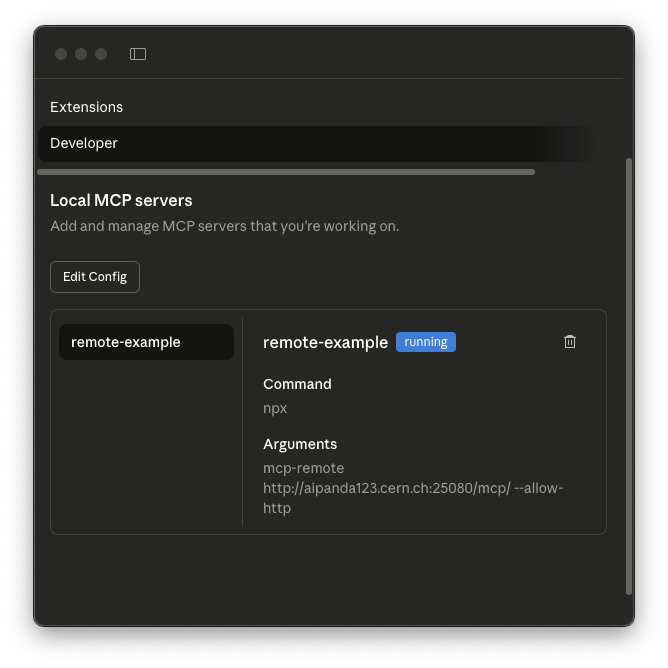
In the chat window, you can enable the PandaMCP tools by clicking the “Search and Tools” button in the bottom left corner.
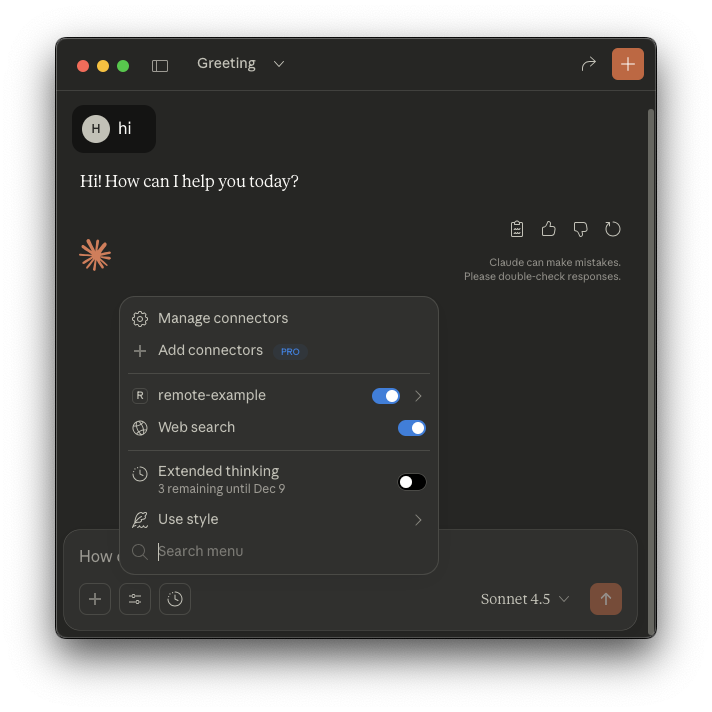
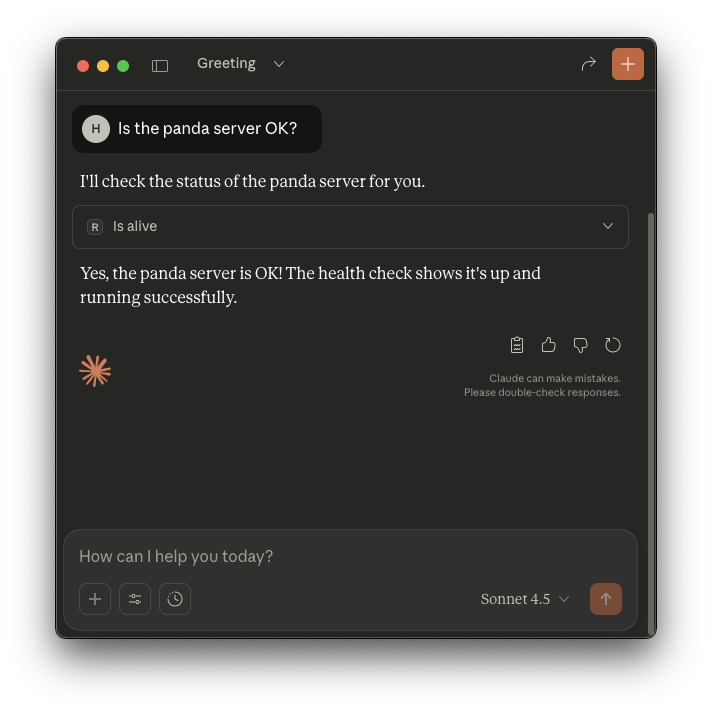
Claude Desktop can now use PandaMCP tools in the chat window. For example, if you type “Is the PanDA server OK?”, Claude Desktop will use the
is_alivetool provided by PandaMCP behind the scenes to check the server’s status and get the answer.